Apex Visibility and Audio Settings: Make Information Easier to Read
Settings should help you recognize useful information comfortably. Test visibility, sound and available accessibility options separately instead of copying a competitive preset that may not suit your display or hearing needs.
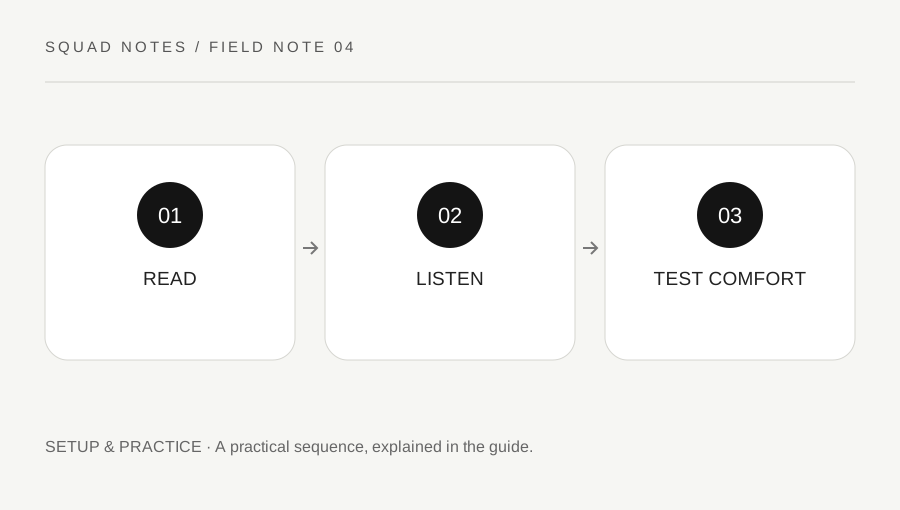
Original explanatory diagram. Examples illustrate a method or decision; they are not claims of personal testing.
Identify the information you are missing
Choose a specific problem: a marker is hard to distinguish from the background, a label is difficult to read or important game sound is masked by other audio. “Everything feels wrong” is difficult to test; a clearly named information problem suggests an appropriate setting or setup check.
Use the current in-game menus and EA's official settings guide to see which options are available on your platform. This article does not promise that every PC option appears on console or that a menu remains unchanged after an update.
Keep a baseline before adjusting display or audio controls. Some changes can affect performance or comfort as well as visibility. A larger field of view, for example, changes the displayed scene and perceived target size; a preference copied from another display is not automatically the best choice for your own position and screen.
Compare a stable visual scene
Use the Firing Range or another appropriate non-disruptive setting and select a repeatable view with nearby and distant objects. Change one relevant option, then compare readability without also switching weapon, optic and viewing distance. Record what improved and what became harder to distinguish.
If color options are available, use them to improve your own information access rather than assuming a mode designed for a particular need is a universal advantage. A setting can make one marker clearer while reducing distinction elsewhere. Check several relevant interface elements before retaining it.
Do not alter system files or install an unverified overlay to force an unsupported visual effect. Supported settings give you a clearer baseline and reduce the chance of creating a technical or account-rule problem while trying to solve an ordinary readability issue.
Test audio at a comfortable level
Reduce unrelated media and compare the game mix at a moderate volume. Louder is not always more informative, and prolonged high levels can be uncomfortable. Choose a short listening question, such as whether interface cues remain audible without overwhelming dialogue or other important sounds.
Use the supported audio options and your device's normal controls. Do not assume that an aggressive equalizer preset identifies every opponent position reliably. Headphones, speakers, room acoustics and hearing differences affect the result.
For a worked example, a player finds a cue masked while music from another app is playing. They first reduce the competing audio and repeat the same test before changing the whole game mix. This isolates one cause. If a cue remains unclear, they can then inspect available game settings without losing the original reference.
Check the result in a real but low-pressure context
After a controlled comparison, use the retained configuration in an available mode suited to learning. Observe whether the intended information is easier to recognize without adding discomfort or performance problems. A single successful fight does not establish that a preset is objectively superior.
Keep a short note of the option, platform and reason for the change. Recheck after a major game or device update if the behavior changes, but avoid rebuilding everything from memory. A screenshot of supported settings can make restoration straightforward.
Finish with the practical outcome: which information became easier to read or hear. Settings are tools for usable access, not a substitute for game knowledge. Comfortable recognition of a marker or cue is valuable even when it does not produce an immediate score change, and a preset should be rejected if it solves one issue by creating a more significant difficulty elsewhere.
A practical checklist
Choices are saved in this browser. Reset them here or clear this site’s browser storage.
Questions that come up
Is a professional player’s preset automatically best?
No. Display, device, platform, comfort and access needs differ. Test the information you actually need to recognize.
Should I raise volume until every sound is obvious?
No. Keep a comfortable moderate level and reduce masking sources. Loudness does not guarantee clearer interpretation.
Does this page list every accessibility option?
No. Availability can differ by platform and update. Use the current in-game menu and official guidance.
References & scope
Background references checked on 18 October 2026. Worked examples and diagrams are original teaching material.